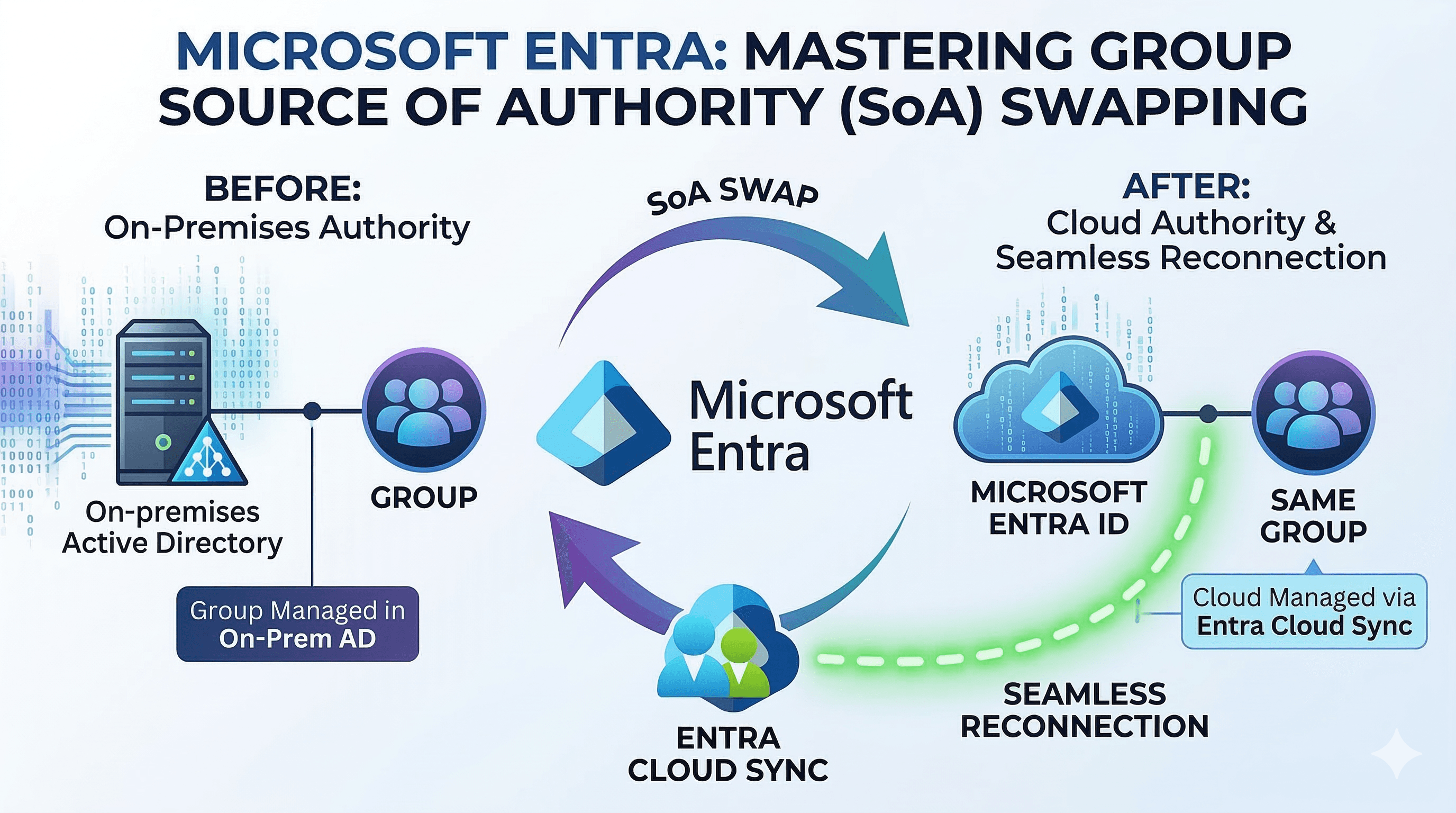
This post explores a specific hybrid identity scenario: taking a group synchronized from Active Directory Domain Services (AD DS), changing its Source of Authority (SOA) to Microsoft Entra, and then using Microsoft Entra Cloud Sync to write the group back to AD DS. The critical requirement in this pattern is configuring the writeback to reconnect to the original AD group rather than creating a duplicate object in a default Organization Unit (OU).
The standard capability to convert SOA for a group is well-documented, but combining it with Cloud Sync customized attribute mapping to seamlessly overwrite the existing AD group requires bringing together several different configuration concepts.
This post assumes that fundamental hybrid infrastructure is already established. AD DS, Microsoft Entra ID, identity synchronization, and Cloud Sync are deployed and functioning. The target group must already exist in AD and synchronize to Microsoft Entra.
Scenarios / use cases
Below are practical reasons why organizations utilize this conversion pattern:
- Legacy application authorization: On-premises applications that depend on LDAP queries or Kerberos tokens need security groups to stay in AD DS.
- Modernizing access governance: By changing the group's source of authority to Entra, administrators can utilize Entra ID Governance like access packages, access reviews and self-service management, which are difficult or impossible to perform efficiently in AD DS.
- Shifting the management plane: Rebuilding permission models across legacy applications is often not feasible. By transitioning group SOA to the cloud and mirroring the result backward, Entra becomes the control plane, while AD functions merely as a projection layer.
It is important to note that this is not a dual-write sync. Once a group's source of authority is moved to the cloud, any direct modifications to the on-premises AD group are treated as temporary and overwritten during the next provisioning cycle.
Prerequisites
Before converting the source of authority, ensure the following requirements are met:
- Supported sync client versions: Ensure Entra Connect Sync is running version 2.5.76.0 or later, and Cloud Sync is running version 1.1.1370.0 or later. For group writeback to AD DS, the Cloud Sync provisioning agent must be at version 1.1.3730.0 or later.
- Active Directory schema validation: The AD schema requires the msDS-ExternalDirectoryObjectId attribute, which is included by default in Windows Server 2016 and newer.
- Microsoft Graph permissions: Changing the group's source of authority requires the Group-OnPremisesSyncBehavior.ReadWrite.All permission. For delegated workflows, the least-privileged administrative role required is Hybrid Identity Administrator.
- Universal group scope: The existing AD group should be set to Universal scope before the conversion.
Preserving the existing AD identity
Since the goal is to map the cloud-managed group back to its original AD location, preservation steps must happen prior to the conversion. The existing distinguished name (DN) of the AD group must be mapped into Entra.
The most common enterprise pattern is that inbound synchronization still runs through Microsoft Entra Connect Sync, while Cloud Sync is introduced later for the Entra-to-AD writeback leg. In that model, the DN should be preserved in a tenant-scoped directory extension that Entra Connect Sync owns through its Tenant Schema Extension App. If the inbound leg is already running on Cloud Sync, the equivalent extension can instead be created on CloudSyncCustomExtensionsApp. Cloud Sync group writeback can consume extension attributes from either supported application, but Entra Connect Sync should not be described as exporting directly into a CloudSync-managed extension.
The following Microsoft Graph PowerShell example demonstrates creating the extension on CloudSyncCustomExtensionsApp, which is the pattern Microsoft documents for Cloud Sync-native extension mapping:
$tenantId = (Get-MgOrganization).Id
\(app = Get-MgApplication -Filter "identifierUris/any(uri:uri eq 'API://\)tenantId/CloudSyncCustomExtensionsApp')"
if (-not $app) {
    \(app = New-MgApplication -DisplayName "CloudSyncCustomExtensionsApp" -IdentifierUris "API://\)tenantId/CloudSyncCustomExtensionsApp"
}

\(sp = Get-MgServicePrincipal -Filter "AppId eq '\)($app.AppId)'"
if (-not $sp) {
    \(sp = New-MgServicePrincipal -AppId \)app.AppId
}

New-MgApplicationExtensionProperty -ApplicationId $app.Id -Name "GroupDN" -DataType "String" -TargetObjects Group
After creating or identifying the extension, the next step is to populate it. The objective is the same regardless of sync client: take the current AD distinguished name and copy it into an Entra extension attribute on the synchronized group before the SOA change.
Common enterprise approach: Entra Connect Sync inbound
If your tenant still uses Entra Connect Sync for the AD-to-Entra path, the cleanest supported pattern avoids custom synchronization rules entirely. Because converting a group's Source of Authority is typically a one-off transition for each group rather than a continuously synchronized state, you do not need a permanent script or custom rule bridging distinguishedName to an extension attribute.
A practical pattern is:
1. Pick an unused on-premises group attribute that can safely hold the original DN as a single string value (e.g., extensionAttribute15).
2. Populate that on-premises attribute with the group's current DN statically, just once, before the SOA change.
3. Use the Entra Connect wizard to enable that attribute for Group directory extensions. (Let the built-in sync rules flow the attribute natively).
4. Run the required import/sync steps so Entra Connect creates and populates the generated extension property in Entra.
5. Verify the value in Entra before changing isCloudManaged.
A short worked example from my lab looked like this:
- On-premises source attribute: extensionAttribute15 on the group object
- Value stored before conversion (one-off text deployment): CN=GroupSOADemo,OU=Groups,DC=contoso,DC=com
- Entra Connect wizard action: enable extensionAttribute15 for Group directory extensions
- Resulting Entra attribute after sync: extension_<TenantSchemaExtensionAppId>_extensionAttribute15
Custom rules in the Synchronization Rules Editor are functionally optional and only required if you decide to dynamically derive the DN value for ongoing synchronizations. By simply treating the extension attribute as a static, one-time payload populated before the cutover, the native directory extensions feature handles the rest without complex customized rule shapes.
After synchronization completes, verify that the generated Entra extension contains the full DN. That is the value later consumed by the Cloud Sync ParentDistinguishedName and CN expressions.
Running Get-MgGroup -GroupId <groupId> -Property * will show the on-prem extension properties in the AdditionalProperties collection, which is often easier to parse than the more complex $expand=extensions syntax. The key point is confirming that the extension contains the full DN before proceeding with the SOA switch.

Cloud Sync inbound alternative
If the inbound leg is already on Cloud Sync, the workflow is simpler:
- Add or confirm an inbound attribute mapping for the group object that sources the AD distinguished name.
- Target the tenant-scoped extension attribute created on CloudSyncCustomExtensionsApp, such as extension_<appIdWithoutHyphens>_GroupDN.
- Run a sync cycle and wait for the group object in Entra to update.
- Confirm the value on the target group before changing isCloudManaged.
Validation matters here because the writeback configuration later depends on this value being correct. A simple validation approach is to query the group through Microsoft Graph and confirm the extension property contains the full original DN, for example CN=GroupSOADemo,OU=Groups,DC=contoso,DC=com. If the value is missing, truncated, or reflects a stale OU path, Cloud Sync will not have enough information to match the original object reliably.
For example, after the inbound mapping runs, retrieve the group and inspect the extension property:
GET https://graph.microsoft.com/v1.0/groups/{groupId}?\(select=id,displayName&\)expand=extensions
Depending on the client you use, it can be easier to request the specific extension property directly through Microsoft Graph PowerShell or Graph Explorer and verify that the stored DN exactly matches the current on-premises group DN. In an Entra Connect Sync-based deployment, this extension name will usually be in the form extension_<TenantSchemaExtensionAppId>_<AttributeName>. In a Cloud Sync-based deployment, it will typically be extension_<CloudSyncCustomExtensionsAppId>_<AttributeName>. That one check establishes that Entra now has a durable copy of the AD location data needed for the later ParentDistinguishedName and CN mappings.
Converting Source of Authority
The source-of-authority switch is performed against the Microsoft Graph API.
First, retrieve the current synchronization state:
GET https://graph.microsoft.com/v1.0/groups/{groupId}/onPremisesSyncBehavior?$select=isCloudManaged
For standard synced AD groups, the isCloudManaged property will evaluate to false. Next, issue a PATCH request to flip management to the cloud:
Invoke-MgGraphRequest -Method PATCH `
    -Uri "https://graph.microsoft.com/v1.0/groups/$groupId/onPremisesSyncBehavior" `
    -Body @{ isCloudManaged = $true }
Subsequent GET requests will show isCloudManaged as true and onPremisesSyncEnabled as null. At this operational boundary, the group becomes fully editable within Microsoft Entra. However, the legacy application integration depends on completing the writeback setup.

You can also verify the change in the Entra portal. The group will lose its "Synchronized from on-premises Active Directory" status and the "Source" field will update to "Cloud". The critical part of this pattern is that the original AD group is not orphaned or duplicated, but rather becomes cloud-managed while retaining its original identity and location in AD. However, it will be flagged as excluded in Entra Connect Sync when the source of authority has changed.
Before:

After:

Configuring Cloud Sync Writeback
The final component uses the preserved DN established in the prerequisites for the Entra-to-AD provisioning job.
In the Cloud Sync attribute mapping for groups, expression-based mappings must be configured for the ParentDistinguishedName and CN target attributes. The mapping definitions strip the CN= portion to identify the parent OU path for the ParentDistinguishedName, while separately extracting the CN string to specify the target group name.
Microsoft's documented pattern uses an extension name such as extension_<AppIdWithoutHyphens>_GroupDistinguishedName. In an enterprise tenant using Entra Connect Sync to flow an existing on-premises attribute (like extensionAttribute15), the stored DN resides on the Tenant Schema Extension App with a generated name like extension_<TenantSchemaExtensionAppId>_extensionAttribute15. Substitute your exact generated extension attribute name in the expressions below. The key point is that both expressions must reference the same stored DN value.
Use the following expression for ParentDistinguishedName:
IIF(
  IsPresent([extension_<TenantSchemaExtensionAppId>_extensionAttribute15]),
  Replace(
    Mid(
      Mid(
        Replace([extension_<TenantSchemaExtensionAppId>_extensionAttribute15], "\,", , , "\2C", , ),
        InStr(Replace([extension_<TenantSchemaExtensionAppId>_extensionAttribute15], "\,", , , "\2C", , ), ",", , ),
        9999
      ),
      2,
      9999
    ),
    "\2C", , , ",", ,
  ),
  "<Existing ParentDistinguishedName>"
)
This expression does two things. If the extension is populated, it removes the leading CN= segment and returns only the parent DN path. If the extension is empty, it falls back to the default target OU that you specify in the mapping.
Use the following expression for CN:
IIF(
  IsPresent([extension_<TenantSchemaExtensionAppId>_extensionAttribute15]),
  Replace(
    Replace(
      Replace(
        Word(Replace([extension_<TenantSchemaExtensionAppId>_extensionAttribute15], "\,", , , "\2C", , ), 1, ","),
        "CN=", , , "", ,
      ),
      "cn=", , , "", ,
    ),
    "\2C", , , ",", ,
  ),
  Append(Append(Left(Trim([displayName]), 51), "_"), Mid([objectId], 25, 12))
)
This expression extracts the first DN component, removes the CN= prefix, and restores any escaped commas that were temporarily converted during parsing. If the extension is not present, the fallback generates a deterministic CN from the group display name and part of the object ID.
Worked example:
- Stored extension value: CN=GroupSOADemo,OU=Groups,DC=contoso,DC=com
- Resolved ParentDistinguishedName: OU=Groups,DC=contoso,DC=com
- Resolved CN: GroupSOADemo
This is the intended outcome of the two mappings together. The first expression removes the leading common name component and preserves the remaining OU and domain path. The second expression extracts only the common name so Cloud Sync can target the original group name in the original container.
This ensures Cloud Sync derives the proper container and naming convention to match the original AD object path, rather than generating an arbitrary object. When properly scoped and configured, the provisioning logs should indicate a match and update against the pre-existing target group, confirming the behavior framework.
The next step is to run the Cloud Sync provisioning job and monitor the logs for the expected match and update operations against the original AD group. If the expressions are correct and the extension contains the right DN, you should see a successful update rather than a creation of a new object in the default OU.

You can perform an additional validation step by adding or removing a member from the group in Entra and confirming the change is reflected in AD DS after provisioning runs. This confirms that the writeback is functioning end-to-end and that the original group is now being managed from the cloud.


Troubleshooting
If your provisioning log shows HybridSynchronizationActiveDirectoryInvalidGroupType, the expression mappings are usually not the problem. That error normally means the matched on-premises target group is not a supported writeback target. In practice, recheck that the original AD object is a standard non-mail-enabled Security group, that its scope is Universal before the SOA cutover, and that it is not still carrying Exchange-style mail-enabled group characteristics from an earlier lifecycle.
A quick validation checklist for the original AD group is:
- GroupCategory = Security
- GroupScope = Universal
- Not a Mail-Enabled Security Group or Distribution List
- No Exchange dependency that keeps the group mail-enabled when Cloud Sync tries to update it
Important caveats and limitations
- Mail-enabled groups and writeback: While Mail-Enabled Security Groups (MESGs) and Distribution Lists (DLs) can have their Source of Authority converted to the cloud (for management via Exchange Online), they are not supported for Cloud Sync group writeback to AD DS. If provisioning logs show HybridSynchronizationActiveDirectoryInvalidGroupType, this unsupported target-group state is one of the first things to verify. The writeback pattern detailed in this post applies only to standard Security Groups.
- Entra Connect Sync customization boundaries: If you preserve the DN by using Entra Connect Sync, use custom synchronization rules with higher precedence than the defaults and avoid directly editing Microsoft out-of-box rules. Microsoft also documents that directory extensions owned by Entra Connect should be managed through the Entra Connect-supported model, because cloning or manually re-pointing directory extension rules can create upgrade and synchronization issues.
- Nested groups: Group SOA does not apply recursively. For nested synced groups to transition to cloud management, administrators must convert them iteratively, typically beginning at the lowest level of the hierarchy.
- Cloud-only users: Group provisioning to AD DS handles only member references with valid on-premises identity anchors. For hybrid groups containing both cloud-only and synchronized user accounts, Cloud Sync writes back the synchronized identities and skips cloud-only references.
- Prohibited local modifications: Post-conversion, the on-premises copy is no longer the source of truth. Any direct changes made against AD DS will be overwritten silently when the background provisioning system next executes.
- Scale constraints: For the Cloud Sync group provisioning job, Selected security groups is the recommended scope. There are scale boundaries documented regarding maximum groups, total processing memberships, and maximum membership per individual group (capped at 50,000 users).
- Rollback operations: Source of authority can be reverted by running a PATCH request setting isCloudManaged to false. The rollback process completes only when the directory sync client evaluates and re-assumes ownership on the next iteration. It is critical to sever cloud reference dependencies, such as clearing cloud-only members or removing associated Access Packages, prior to initiating a rollback.
Architecture
The following diagram illustrates the complete logical workflow.

Conclusion
Converting a group's Source of Authority from Active Directory to Microsoft Entra, combined with Cloud Sync writeback mapping, provides a precise bridge between overlapping architectures. Administrators can transition group management, approvals, and dynamic requirements to Entra ID while safely preserving the exact group structure that existing LDAP or Kerberos applications rely on.
Once you have validated the core pipeline of storing the GroupDN and applying custom Cloud Sync expressions, there are several ways to scale or apply this model:
- Connect Group SOA to Access Packages: With management shifted to Entra ID, these groups are eligible for Microsoft Entra ID Governance. This means you can wrap the group in an Access Package, enabling self-service requests and automated access reviews for legacy apps without writing custom code or deploying complex on-premises identity managers.
- Implement AD DS Minimization: Evaluate whether certain applications have modernized entirely to SAML or OpenID Connect. If they no longer require the AD group for authorization, you can flip their group SOA to the cloud and simply skip the Cloud Sync writeback step. Over time, this steadily reduces reliance on AD DS.
- Address Exchange Dependencies: Distribution Lists (DL) and Mail-Enabled Security Groups (MESG) synced from on-premises Exchange can also have their SOA converted. While these cannot be directly managed by Microsoft Graph, converting them enables management through Exchange Online PowerShell. From there, you can upgrade non-nested DLs into modern Microsoft 365 Groups for richer collaboration.
- Convert Groups Systematically: For nested groups, begin converting from the lowest level of the hierarchy, as the SOA switch does not apply recursively.
References
Guidance for using Group Source of Authority (SOA)
Configure Group Source of Authority (SOA)
Embrace cloud-first posture: Convert Group Source of Authority to the cloud
Tutorial - Provision groups to Active Directory Domain Services by using Microsoft Entra Cloud Sync
Group writeback with Microsoft Entra Cloud Sync
Cloud sync directory extensions and custom attribute mapping
Attribute mapping - Active Directory to Microsoft Entra ID
Writing expressions for attribute mappings in Microsoft Entra ID
Expression builder with cloud sync
onPremisesSyncBehavior resource type
Get onPremisesSyncBehavior
Update onPremisesSyncBehavior
Microsoft Entra Connect Sync: Directory extensions
Microsoft Entra Connect Sync: Make a change to the default configuration
Microsoft Entra Connect Sync: Best practices for changing the default configuration